Table of Contents
1. General Information 2. Quick Guide 3. Editing the Course Module
1. General Information
Editing a learning module is done to populate a previously created course and add: — Topics; — Textual content and multimedia assets; — Assignments.
This is only accessible to authorized instructors who have already created courses and modules.
2. Quick Guide
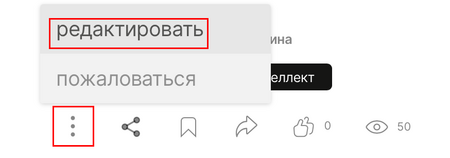
Log in to the system → Go to the course → Open the desired module → Find the ellipsis at the bottom of the page and click the Edit button → Add blocks → Save changes.
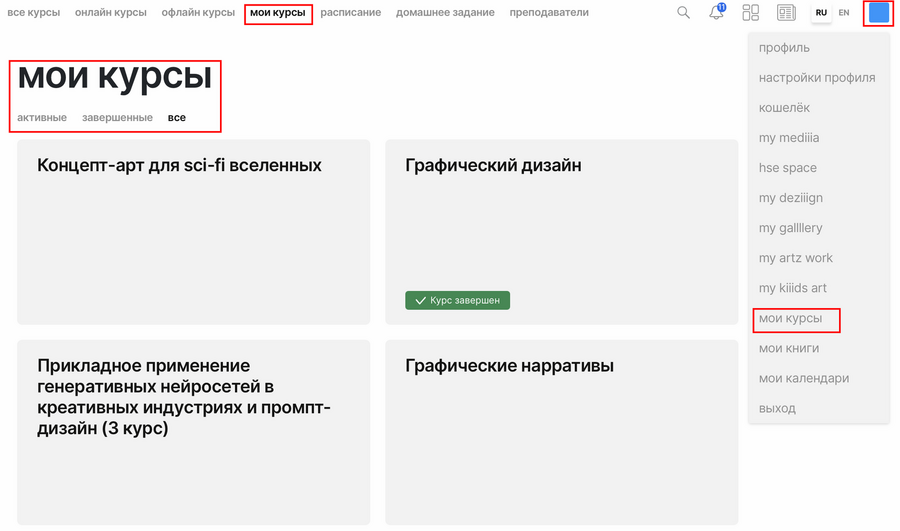
Check the available courses in the «My Courses» section (My Courses) (the link is available from the main menu page https://lms.hsedesign.ru/ and in the dropdown menu when clicking on the profile picture).
For more information about Course Registration.
If any course is missing or unavailable, please contact the Support Chat.
3. Editing a Course Module
Course module editing is available only to authorized instructors.
- Log into the system $\rightarrow$ Navigate to the course $\rightarrow$ Open the desired module $\rightarrow$ Find the ellipsis at the bottom of the page and click the Edit button.
Check and fill in the following fields:
— Module Title — the name of the module that will appear on the website (this field is required); — Discipline Type — indication of the type of discipline to which the module belongs; — Button Name — the text on the button to return to the list of modules; — Author — indication of the author of this educational module (this field is required; by default, the authorized user of the administrative interface is set as the author); — Required Tag — the primary tag associated with this module; — Tags — optional tags related to this module; — Module Instructors — a list of instructors for this educational module; — Next Topic Availability — a dropdown menu; — Next Module Link — indication of the link to transition to the next module; — Description — adding a textual description of the educational module that will appear on the website (this field is required).
Important: In the Author and Module Instructors fields, only users previously added to the course will be available. Other users will not appear in the search results.
More detailed information on managing the learning module is available in the instructions on Creating Modules.
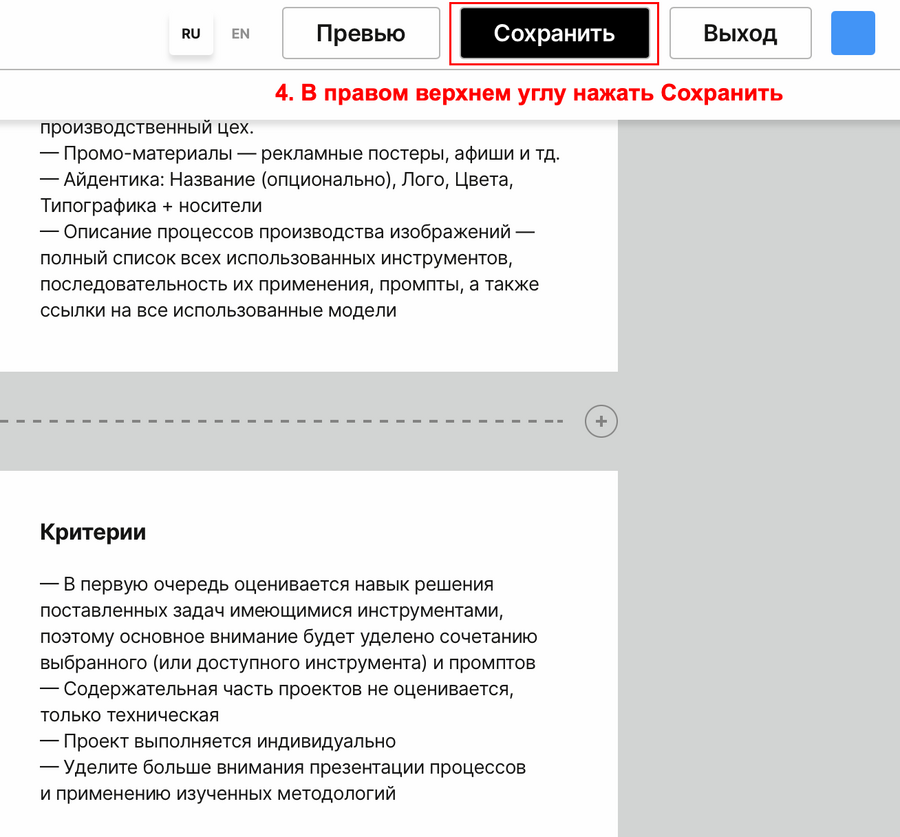
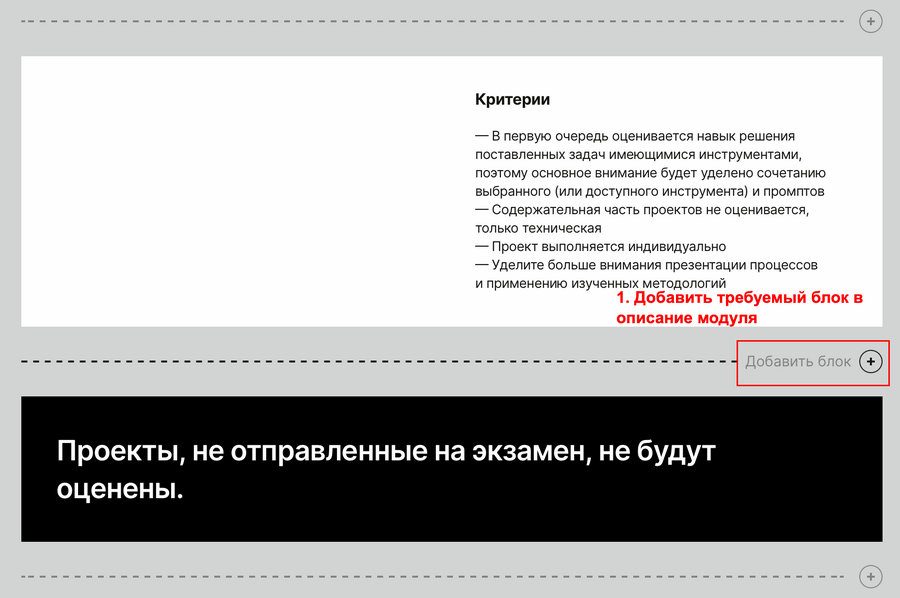
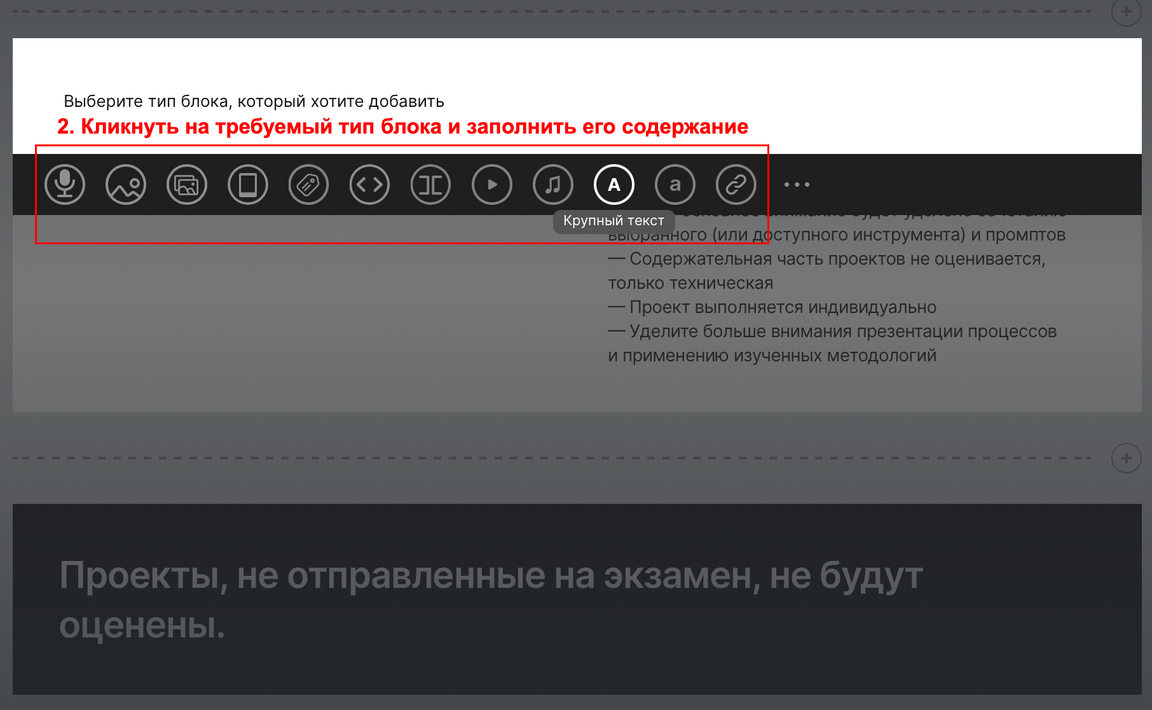
- Add blocks → Save changes.
The added blocks will be displayed on the module page, visible to students and instructors.

For any questions regarding the platform, please contact the HSE Art and Design School support team.
E-mail: support@hsedesign.ru